Don’t miss our latest updates
Get news and content delivered straight to your inbox
Thank you! Your submission has been received!
Oops! Something went wrong while submitting the form.


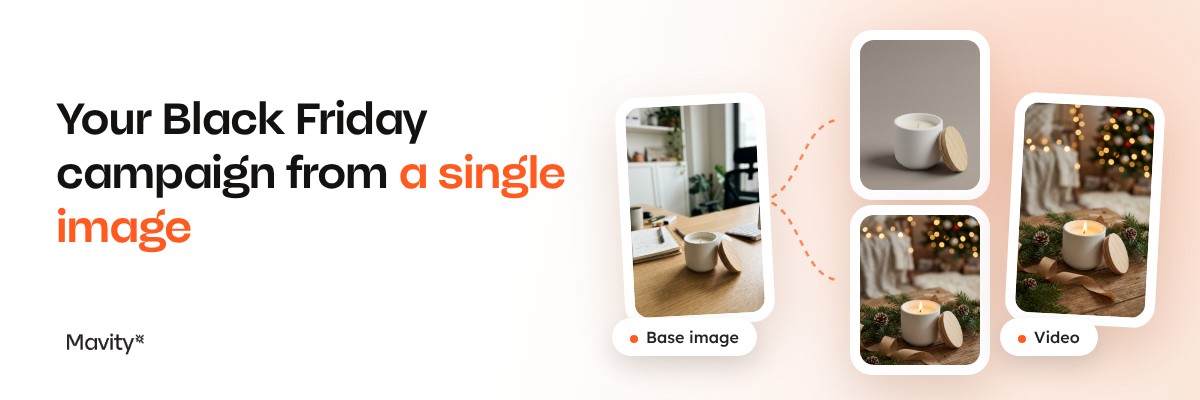
This year Black Friday falls on November 27 and, according to Meta, leaves only 28 days until Christmas, almost a week less than usual. If your Black Friday campaign with AI is still sitting in the brief, you're not late, but you do need a short, concrete plan. This guide is that plan: five days, one product image as the starting point and the whole process done inside Mavity.
To write it we ran the test for real. We took a ceramic candle as the example product, set up a new project and got the catalog photo, the seasonal ad, a vertical video and even the music out of a single Flow. The images below are the actual results of that test.
Meta published its 2026 holiday guide with two numbers worth keeping close. 86% of holiday shoppers use social media for inspiration, and 58% of Gen Z discover gifts through Reels and Stories. In day-to-day terms, the season is won with images and short videos, in enough volume to test what works.
The problem is rarely the idea. It's production: a photoshoot, retouching, versions for every channel, a video nobody has time to edit. A well-built Black Friday campaign with AI doesn't replace your team's judgment, but it does take weeks of production off your plate.
Open Mavity, create a new project and give it a clear name, like "Black Friday 2026". Everything you make this week will live there.
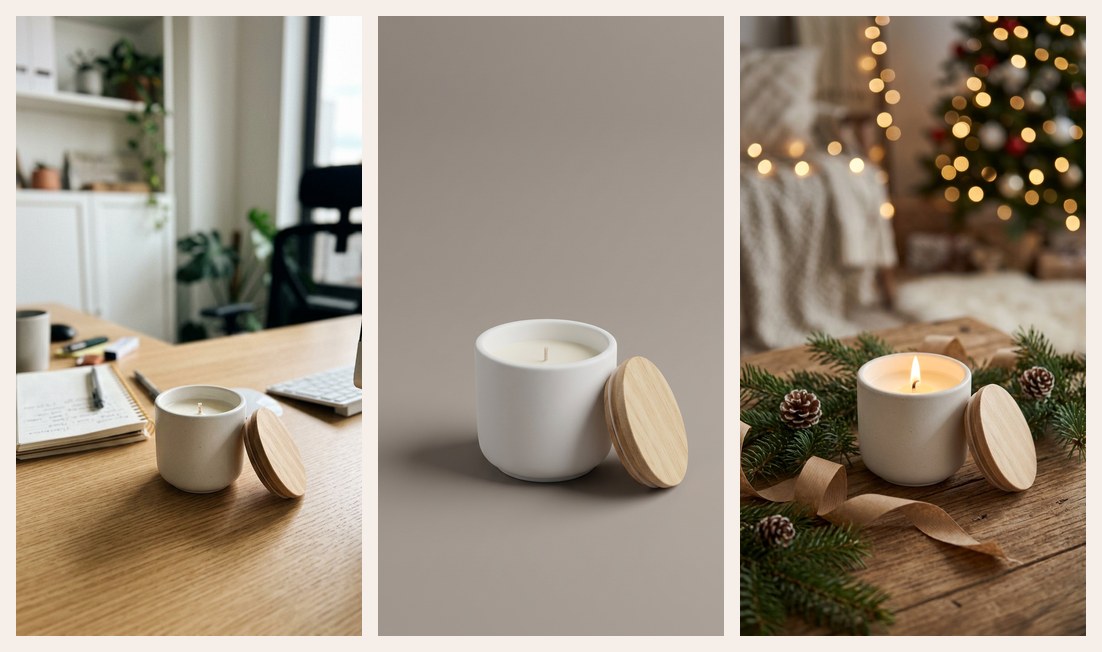
Next comes the base image for each product. Ideally you upload a good photo, well lit and on a clean background, using the Upload node. If you don't have one yet, you can also generate it in an image node by describing the product in detail. That's what we did in our test: we generated the candle on an office desk with Nano Banana 2.1 and used it as the starting point for everything else.
One tip that saves time later: always describe the product the same way. Material, color, shape and size. You'll repeat that exact description in every node so the product doesn't drift between pieces.
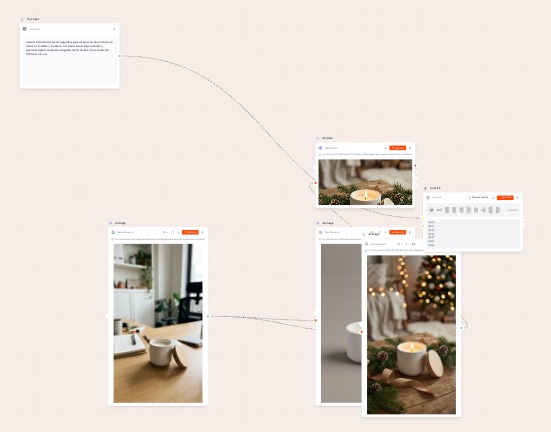
This is the core of the work. On the canvas you connect your base image to several image nodes, one for each asset you need. In our case there were two: a catalog photo on a studio background and a seasonal version with warm lights and pine branches.
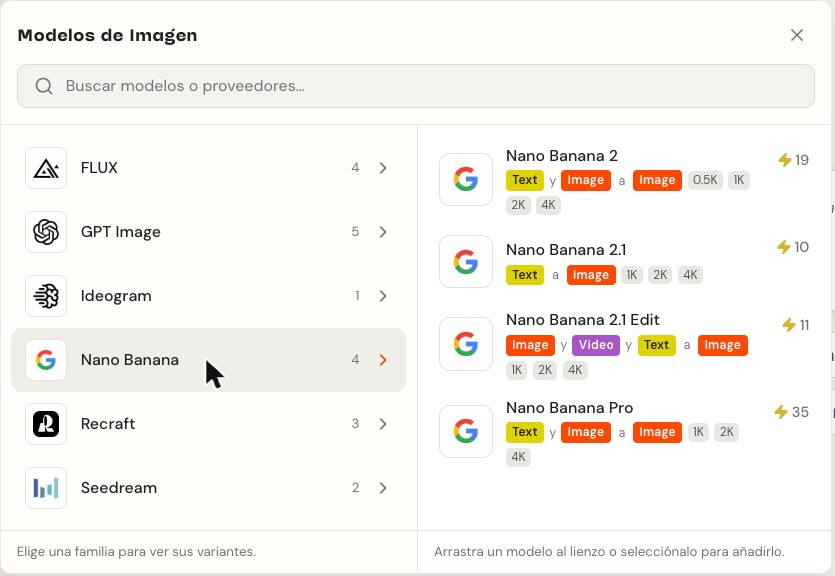
In the Node Library, models are grouped into generation categories. Open Image and you see the available families, the output resolution of each model, which inputs it accepts and how many credits it costs. To edit from a reference you want a model that takes text and image; we used Nano Banana 2 for both scenes.
Always start with "the same product from the reference image" and repeat your Day 1 description. Then add only what changes: the background, the light, the mood. End with "no text or logos" so the result stays clean and you can design on top of it. Pick the aspect ratio for the channel: 9:16 for Reels and Stories, 4:5 for the feed.
With your images ready, connect your favorite one to a video node. We used WAN 3.0 I2V, which starts from an initial image and animates it based on the prompt. We asked for a slow camera move toward the candle, the flame flickering and the background lights twinkling. The result was a five-second vertical clip ready for Reels.
For the music we added an Audio node with Lyria and a text node with the description: instrumental, warm, mid tempo, no vocals. That way the full reel, with scenes, video and music, came out of the same project.
The last day isn't for producing, it's for reviewing. Look at every asset at the size it will be seen, on a phone. Check that the product looks the same across all of them, that your brand colors are there and that any text you add reads easily. If you work with Copilot inside the project, ask it to go over the copy for each asset against your brand's tone before you wrap up.
Then build the calendar. Meta expects more demand to compress into the Black Friday to Cyber Monday window this year, so get those days' assets ready first and schedule the rest around them.
Friday, November 27, 2026. Cyber Monday is November 30.
They help, but they're not required. A clear, well-lit photo works, and if you don't have one you can generate the base image in an image node like we did in this test.
Yes. You connect one of your images to a video node and generate it right there, without leaving the canvas.
Five days is enough when the process lives in one place. One image, one Flow and a clear plan get you a catalog photo, a seasonal ad and a video before the busiest week of the year begins.
Create your free Mavity account and build your Black Friday campaign today.